Beginner’s Guide to Smart Locks: Convenience vs ‘What If It Fails?’

The first time I seriously looked at smart locks, I spent about twenty minutes reading about them and then closed the tab and bought nothing. The appeal was obvious: no more keys, guest access without physical copies, knowing when someone arrived home. But so were the concerns. What happens when the battery dies? What if the app has a bug? What if the Wi-Fi goes down? I did not want to be locked out of my own home because of a software update.
That skepticism kept me away from smart locks for longer than it should have. I eventually installed one and have been using it for over two years without a single lockout incident. What changed my mind was understanding how they actually work and what the real failure modes are, as opposed to the imagined worst-case scenarios.
If you are in the position I was in, curious but uneasy, this is the explanation I wish I had found earlier.
What a Smart Lock Is and Is Not
A smart lock is a physical lock with additional control methods built in. There is still a bolt in your door. The bolt still physically engages the door frame when locked. The smart part is only in how you operate that bolt.
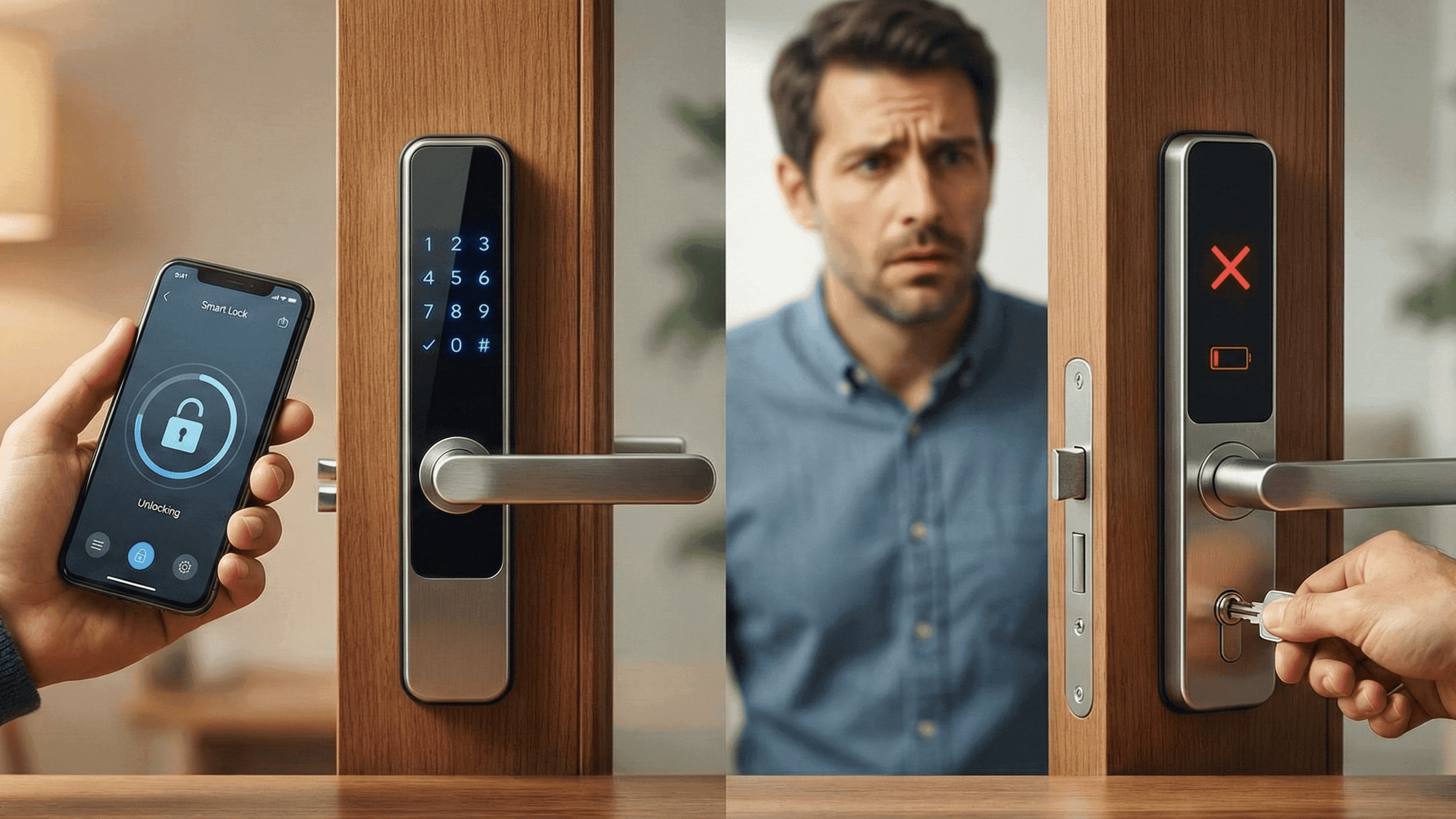
Instead of, or in addition to, a traditional key, a smart lock typically lets you use a PIN code on a keypad, a fingerprint sensor, a key card, your phone via Bluetooth or Wi-Fi, or in some cases a voice assistant. Most also keep a log of entries so you can see who unlocked the door and when, let you create guest codes that expire at a specific time, and send alerts if the door is left unlocked or tampered with.
What a smart lock does not do is make your door physically stronger. The door itself, the frame it sits in, and the hinges all remain exactly as they were. A smart lock on a weak door with a poor frame is no more secure against forced entry than a traditional lock on the same door. Smart locks are about access management and convenience, not about making your door harder to kick in.
The Fears, Addressed Honestly
The battery dying and locking you out. This is the concern I hear most often and it is the most manageable. Good smart locks give extensive warning before batteries actually fail. Most start displaying a low battery indicator weeks in advance and send push notifications to your phone when levels drop to a critical threshold. The batteries in most smart locks last six months to a year under normal use, and I have never had one die suddenly without warning.
The more important protection is having a fallback method that does not depend on battery power. Most quality smart locks either retain a physical key cylinder, have external battery contacts where you can hold a 9-volt battery against terminals on the outside to temporarily power the lock, or both. Before buying any smart lock, confirm what the dead battery fallback is. If the only answer is "it shouldn't happen because the battery lasts a long time," that is not a sufficient answer and I would skip that product.
The app crashing or Wi-Fi going down. This worry is based on a misunderstanding of how most smart locks work. The core unlocking functions, PIN pad entry, fingerprint recognition, and Bluetooth phone entry, operate locally and do not require an internet connection at all. What you lose during an internet outage is remote access: the ability to unlock the door from elsewhere, receive notifications, and see the entry log. You do not lose the ability to open your own door.
I have tested this deliberately. With my router unplugged and mobile data off, my smart lock still opens with the PIN code and still recognizes my fingerprint without any hesitation. The cloud features are unavailable, but the door still works. This is how any well-designed smart lock should behave, and it is worth testing when you first set one up.
Being hacked and having someone unlock your door remotely. This is a real concern in the abstract but a much smaller practical risk than most people assume. Physical break-ins remain overwhelmingly the most common method of unauthorized entry. Breaking a window or kicking in a poorly framed door is faster and easier than conducting a targeted wireless attack on a specific lock, and burglars typically are not patient enough or technically sophisticated enough for the latter.
This does not mean ignoring digital security. Use a strong, unique password for your lock account. Enable two-factor authentication if the lock manufacturer supports it. Keep the lock's firmware updated because manufacturers patch security vulnerabilities in updates. These steps make a smart lock more secure digitally than a traditional lock, which has no security vulnerabilities to patch because it has no software.
The mechanism jamming or glitching. Smart locks can have mechanical problems, just like traditional locks can stick or develop faults over time. The best protection against this is reading reviews specifically for long-term reliability rather than just initial setup ease, buying from a brand with a track record of good customer support, and keeping your lock's firmware up to date.
The Types Worth Knowing About
Retrofit smart locks attach to the inside of your existing deadbolt and motorise the thumb turn that you normally rotate by hand. The outside of your door looks exactly the same, your existing key still works in the outside cylinder, and installation is typically a screwdriver job that takes fifteen minutes. These are the best option for renters because they are fully reversible, leave no marks on the door, and preserve the traditional key as a backup. The August Smart Lock and Schlage Encode are well-regarded retrofit options.
Full replacement smart locks replace the entire lock assembly including the outside hardware. They tend to look cleaner, often integrate a keypad and sometimes a fingerprint sensor directly into the exterior hardware, and can fit various door styles. Installation is more involved and you lose the existing key cylinder, which means the traditional key backup disappears unless the product explicitly includes one. These suit people who own their home and want a complete, seamless look.
Smart padlocks are a smaller category worth knowing about for specific situations: a gate in a garden, a storage unit, a bike lock. They are not a replacement for a main door lock but can add keyless convenience to specific access points in a broader home security setup.
What to Look For When Buying
The backup power or entry method is the most important thing to check. Confirm before buying that the lock has at least one way to open it that does not require the battery to have any charge. Physical key cylinder or external power terminals are both acceptable. No fallback is not.
Check compatibility with your voice assistant and smart home platform. Most quality smart locks support Alexa and Google Home. Apple HomeKit support is available on fewer models but is worth confirming if you use HomeKit. Integration with your existing smart home means the lock can participate in automations, such as a welcome home routine that triggers when you unlock the door.
Battery type matters more than it seems. Locks that use standard AA or AAA batteries are much more convenient than proprietary rechargeable packs because you can replace them with anything from any shop at any hour. A proprietary battery that needs to be charged or ordered specifically is a small inconvenience that becomes a large one when it fails unexpectedly.
Read reviews with particular attention to what people say six months or a year after purchase, not just at the time of installation. First impressions of smart locks tend to be positive because the novelty is real. Long-term reliability is what actually matters for something that secures your home every day.
Whether It Is Worth It For You
Smart locks make most sense for people who find physical keys genuinely inconvenient. If you regularly lose keys, share your home with people who need their own access, or frequently need to let people in when you are not there, the quality-of-life improvement is significant and immediate. The guest access feature alone, which lets you create a code for a cleaner or house-sitter that automatically expires when they no longer need it, is worth the investment for a lot of households.
If you rarely think about your keys and the idea of managing battery levels and firmware updates feels like adding complexity rather than reducing it, a smart lock might genuinely not be the right trade-off for your situation. There is no obligation to have one just because other smart home tech has been useful.
For anyone in the middle, which is probably most people reading this, I would say start with a retrofit lock that keeps your existing key as a backup. It gives you the full smart lock experience with an obvious safety net, and if you decide it is not for you, you uninstall it in fifteen minutes and nothing about your door has changed.
I installed my first smart lock eighteen months ago expecting to feel anxious about it. Within a week I stopped thinking about it at all, which is the best possible outcome for a piece of home security hardware.


