How to Use NFC Tags to Control Smart Home Routines (The Tap-to-Automate Guide)

I have an NFC tag stuck to the underside of the lamp on my bedside table. It has been there for about eighteen months. Every night I tap my phone to it and the apartment does what it needs to do: lights off, fan to low, Do Not Disturb on, bedroom temperature adjusted. The whole sequence takes about two seconds from tap to completion and requires no voice command, no unlocking my phone, no app.
Before I set that up I was saying "goodnight" to the Echo, which is fine, but voice recognition is not perfect and on the occasions where it misheard me or I had to repeat myself, the friction at the end of a long day was more annoying than it should have been. The NFC tag just works, every time, silently, without requiring the house to listen correctly or for me to speak clearly in a quiet room.
NFC tags are one of those smart home tools that most guides mention briefly and then move on from, probably because they are less visually impressive than animated light strips or voice-controlled whatever. But for certain use cases they are the most reliable and most friction-free trigger you can add to a smart home setup. This is the proper explanation of how they work and what to actually do with them.
What NFC Tags Are and How They Work
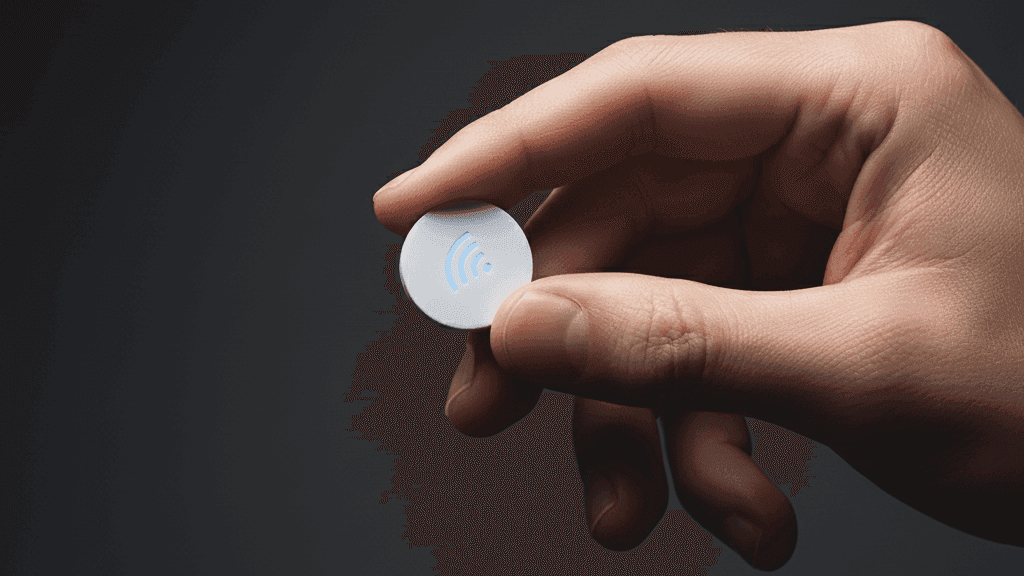
NFC stands for Near Field Communication. It is the same short-range wireless technology used for contactless payments and public transport card tap-ins. NFC tags are passive devices, meaning they contain no battery and generate no signal of their own. They are just small chips that store data and become readable when an NFC-capable device, like your phone, passes close enough to power them briefly through electromagnetic induction.
This passivity is part of what makes them useful for smart home applications. A tag that has no power source cannot run down, malfunction, or go offline. You stick it somewhere and it sits there indefinitely, waiting to be tapped. The phone does all the actual work when you tap it: reads the data on the tag, and triggers whatever automation you have configured for that tag.
Tags come as stickers, cards, key fobs, and in various physical formats. For most smart home placement, sticker tags are the most practical. They can go on any flat surface and are thin enough to be unobtrusive. NTAG213 and NTAG215 are the standard chip types and the ones to look for when buying: both are compatible with current iPhone and Android devices and with the most common automation apps.
One important variant worth knowing about: if you want to stick a tag to a metal surface, standard tags do not work because metal blocks the NFC signal. Anti-metal NFC tags have a shielding layer that allows them to function on metal surfaces. They cost slightly more and are worth buying specifically for those applications.
How Your Phone Reads and Acts on Tags
Modern iPhones from the XS and XR generation onward can read NFC tags in the background without any app open and without the screen being on. When the phone detects a tag, it triggers whatever automation is configured for that tag. On Android, NFC reading behaviour varies slightly by device but most phones from roughly 2019 onward handle background tag reading well.
The automation that fires when a tag is read is configured through different apps depending on your platform and ecosystem.
On iPhone, the Shortcuts app handles NFC tag automations natively. You open Shortcuts, create a new personal automation, select NFC as the trigger, scan your tag to register it, then build the actions you want to run. The actions can include anything the Shortcuts app can control: HomeKit devices if you use that ecosystem, other apps through URL schemes, phone settings like Do Not Disturb, alarms, and more. Turning off the "Ask Before Running" confirmation is an important step that makes the automation run immediately without requiring you to approve it on screen each time.
On Android, the process works through apps like MacroDroid or Tasker. These apps are more powerful than iOS Shortcuts in some ways, particularly for complex multi-step automations and for controlling devices through HTTP requests and webhooks, but they have a steeper initial learning curve. MacroDroid is the more accessible starting point for most people. You create a macro, set an NFC tag as the trigger by tapping your phone to the tag during setup, then add the actions you want to run.
For anyone running Home Assistant, the Home Assistant companion app supports NFC tags natively and allows you to build arbitrarily complex automations triggered by specific tags. This is the most powerful implementation but assumes you already have Home Assistant set up and are comfortable with its automation system.
Where to Actually Put Tags
The placement questions are worth thinking through before you buy tags, because placement determines which use cases you can implement.
Bedside table. This is where I find NFC tags most useful. A tag on the lamp, the nightstand surface, or the underside of a clock triggers a bedtime routine the moment you reach for it at the end of the night. No voice command in a quiet room, no unlocking and navigating an app. Tap and sleep.
Near the front door. A tag by the exit triggers a leaving routine as part of the same physical action as picking up your keys. Tap the tag on your way out: everything turns off, the home switches to away mode. The physical proximity to the door makes the gesture feel natural.
On the desk. A tag on or under a mouse pad, on the side of a monitor, or on the desk surface triggers a work or focus mode when you sit down in the morning. Lights to working brightness, Do Not Disturb on the phone, notifications silenced on the speaker.
In the kitchen. A tag near the coffee setup that triggers the coffee maker, the kitchen light, and a morning news brief. A tag near the cooktop that starts a kitchen timer or activates the extractor fan.
Hidden inside objects. Tags stuck to the inside of a book cover, under a decorative object, or inside a lamp base create triggers that are completely invisible in the room. The interaction looks like you just touching something rather than tapping a visible sticker.
Practical Automation Ideas That Actually Get Used
The most useful NFC tag automations in my experience share a common characteristic: they are triggers for things you do every day at a specific location. The tag becomes part of a physical routine rather than an alternative to an existing one.
A bedside goodnight tag that runs your full bedtime sequence is the most universally useful application. Include whatever your actual bedtime routine involves: lights off, temperature adjustment, Do Not Disturb, white noise if you use it, phone alarm if you set it the same time each day.
A desk start-of-day tag that puts the home into work mode: bright neutral lighting in the work area, smart speaker notifications silenced, your preferred background audio started. Tap it when you sit down and the environment adjusts around the fact that you are now working rather than relaxing.
A guest wifi tag placed in the guest room or near the door: when a guest taps it with their phone, it opens the wifi settings directly to your guest network or presents the password without you having to explain it or look it up. This is a genuinely clever small use of the technology that visitors tend to find impressive.
A medication or supplement tag that logs a timestamp when tapped: if you use any tracking app for health habits, a tag by your supplements that logs when you take them is more reliable than trying to remember to open an app manually.
The Limitations Worth Knowing
NFC tags require physical proximity. You need to touch your phone to the tag, or come within a centimetre or two. This is by design, the short range is a security feature, but it means tags are not useful as area triggers or for automation sequences that should happen at a distance.
On iPhone specifically, the background NFC reading works reliably in most situations but is not perfect. Occasionally a tap does not register, usually because of the angle or speed of the tap. Learning the right technique for your specific phone and tag placement takes a few days but becomes automatic quickly.
Tags can be overwritten. If you accidentally write new data to a tag, or use an app that modifies it, your automation breaks. Locking tags after setup, which most NFC writing apps support, prevents accidental overwrites and is worth doing for tags in high-traffic locations.
Metal and water block the signal. Tags placed directly on metal surfaces without anti-metal shielding will not read. Tags that get consistently wet will degrade.
None of these limitations are dealbreakers. They are just constraints to design around when deciding which use cases and placements make sense for your home.
Getting Started Without Overthinking It
Buy a pack of NTAG213 sticker tags. They are inexpensive, available from most online retailers, and a pack of twenty or thirty gives you plenty to experiment with. Set up one tag first before committing to placements for others.
Pick the most obvious use case for your home. For most people that is a bedside goodnight trigger. Set up the automation in Shortcuts or MacroDroid, write the tag using the same app, stick it somewhere you naturally reach at bedtime, and test it.
Live with that one tag for a week. Notice whether it becomes part of your actual routine or sits there unused. If it gets used consistently, the concept is working for your habits and adding more tags in other locations will follow naturally. If it does not get used, the placement or the automation content was wrong and it is worth adjusting before scaling up.
The goal is a tap that feels as automatic as flipping a light switch, not a technology feature you consciously use. When you reach that point with a tag, it is doing exactly what it should.
I have six NFC tags in my apartment. The bedside one gets used every night. The others get used occasionally. The ratio is fine. The bedside one alone has been worth the investment.


